ACFのラジオボタンで、イメージ画像上に限定アイコンを表示
ACFの選択フィールドには、チェックボックの他に、ラジオボタンなどがあります。今回は、ACFのラジオボタンで、イメージ画像上に限定アイコンを表示する方法を紹介します。

今回のDEMOは、ドーナツのイメージ画像上に店舗限定アイコン表示しています。
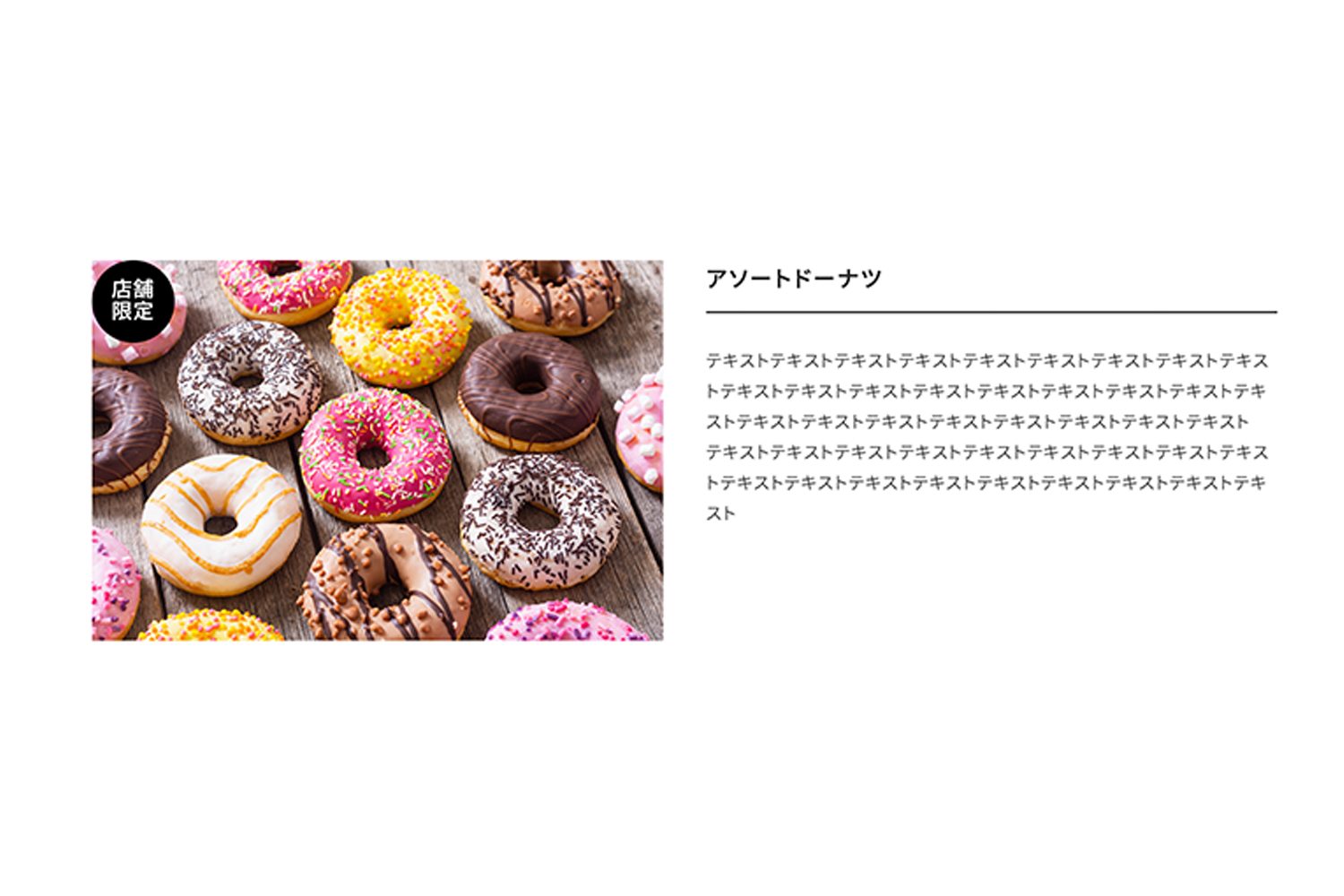
ラジオボタンで3つのアイコンをどれか1つ選択できます。デフォルトの、限定なしのラジオボタンを選択するとアイコンは表示されません。
ACF設定
フィールドタイプは、ラジオボタンです。フィールドラベルに、編集画面に表示する名前、フィールド名にPHPに記入する名前を設定します。選択肢は、値 : ラベルの形式で、改行して入力します。戻り値は、値です。
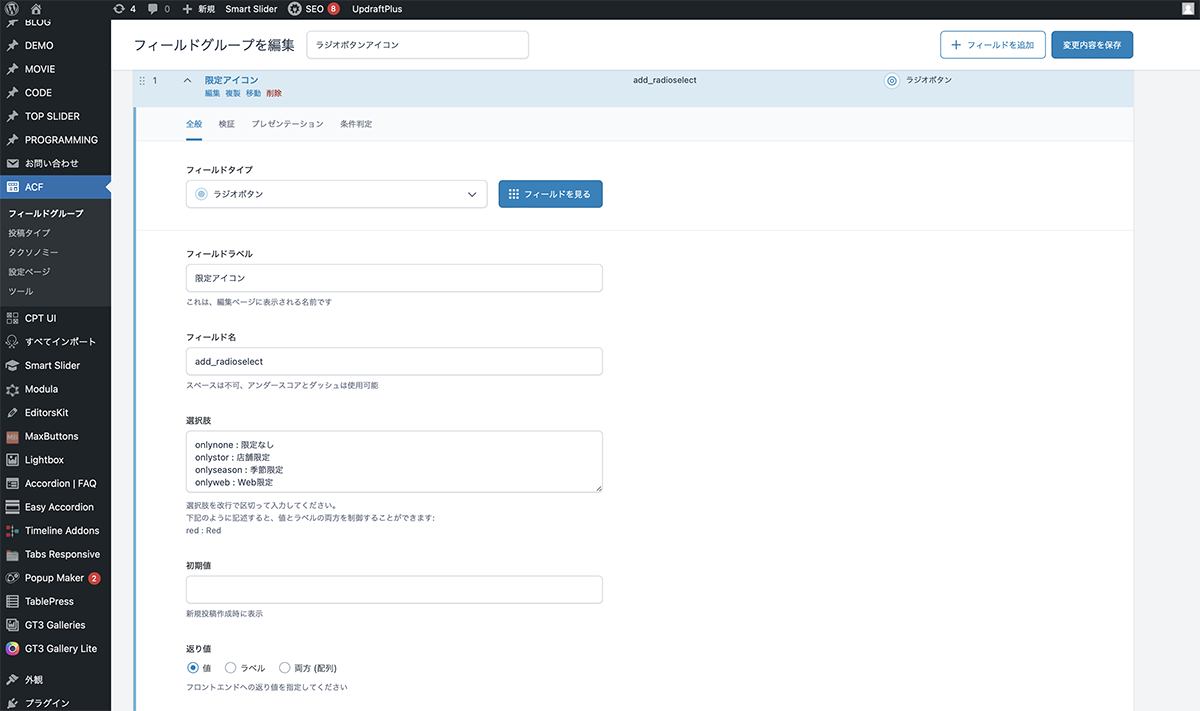
フィールドタイプは、ラジオボタン
| 項目 | 設定値 |
|---|---|
| フィールドタイプ | ラジオボタン |
| フィールドラベル | 限定アイコン |
| フィールド名 | add_radioselect |
| 選択肢 | onlynone : 限定なし onlystor : 店舗限定 onlyseason : 季節限定 onlyweb : Web限定 |
| 初期値 | 空欄 |
| 戻り値 | 値 |
その他のフィールドを設定します。フード写真のフィールドタイプは、画像に設定します。商品名のフィールドタイプは、テキストに設定します。説明のフィールドタイプは、リッチエディターに設定します。
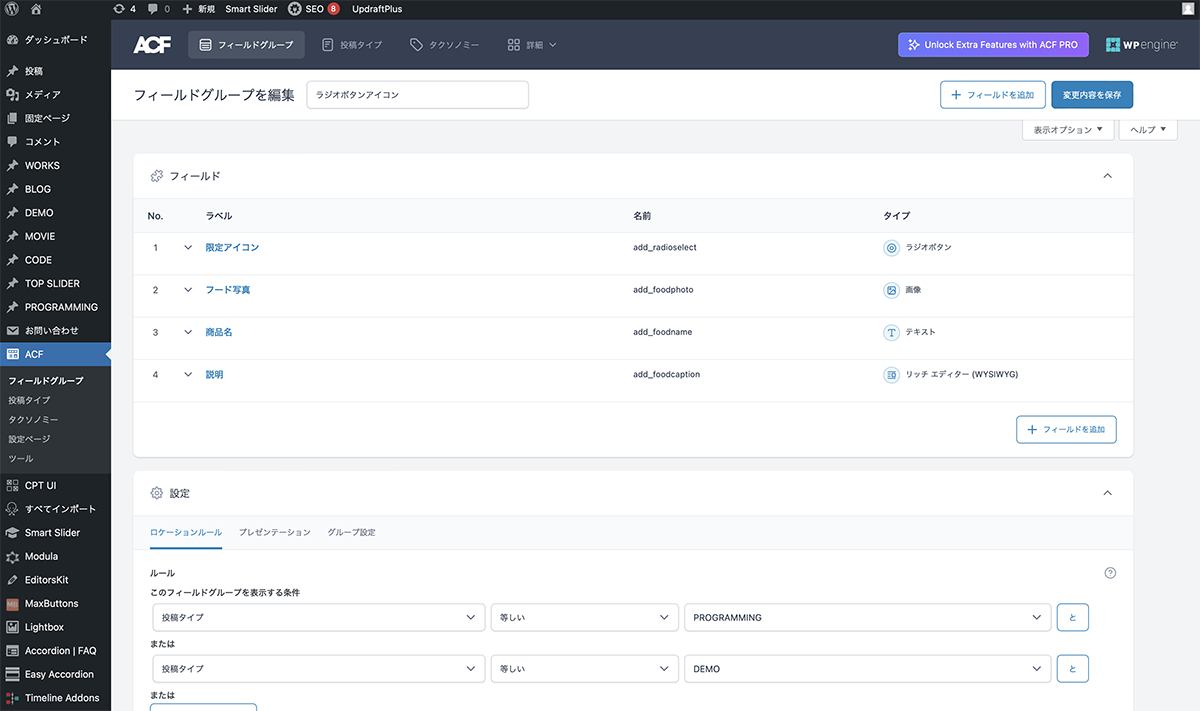
その他のフィールドを設定
コード
シングルページのループ内に下記コードを入力します。
<div class="food_box">
	<div class="food_wrapper">
		<?php
			$image = get_field('add_foodphoto');
			if( $image ):
    		$url = $image['url'];
    		$title = $image['title'];
    		$alt = $image['alt'];
    		$size = 'large';
    		$thumb = $image['sizes'][ $size ];
		?>
			<figure class="food-image">
        		<img src="<?php echo esc_url($thumb); ?>" alt="<?php echo esc_attr($alt); ?>" />
    		</figure>
		<?php endif; ?>
		<?php
  			if( get_field('add_radioselect') == 'onlystor' ){
    			echo '<div class="onlyicon"><div class="iconinner">店舗</br>限定</div></div>';
  			}elseif( get_field('add_radioselect') == 'onlyseason' ){
    			echo '<div class="onlyicon"><div class="iconinner">季節</br>限定</div></div>';
  			}elseif( get_field('add_radioselect') == 'onlyweb' ){
    			echo '<div class="onlyicon"><div class="iconinner">Web</br>限定</div></div>';
  			}
		?>
	</div>
	<div class="food_textbox">
		<div class="food_heading">
			<?php the_field('add_foodname'); ?>
		</div>
		<p><?php the_field('add_foodcaption'); ?></p>
	</div>
</div>
CSSでスタイルを整えます。
.food_box{
	margin: auto;
}

.onlyicon{
	text-align: center;
	color: #fff;
	background: #000;
	width: 4em;
	height: 4em;
	border-radius: 4em;
	display: table;
	margin: auto;
	font-weight: 500;
	font-size: 1.2em;
	line-height: 1.1;
	position: absolute;
	top: 0;
}

.bigpoint{
	font-size: 5em;
	font-weight: 600;
}

 .iconinner{
	display: table-cell;
	vertical-align: middle;
}

.food_wrapper{
	position: relative;
	flex: 1;
}

.food_heading{
	padding-bottom: 0.5em;
	margin-bottom: 1.5em;
	border-bottom: solid 2px #272727;
	font-size: 1.3em;
	font-weight: 500;
	letter-spacing: 0.1em;
}

.foodcontent{
	width: 100%;
	padding-bottom: 1em;
	background: red;
}

.food-image{
	width: 100%;
	padding-bottom: 2em;
}

.food-image img{
	width: 100%;
	height: auto;
}

.food_textbox{
	flex: 1;
	padding-bottom: 2em;
	width: 80%;
	margin:0 auto;
}

.food_textbox .okane{
	font-weight: 500;
	font-size: 1.2em;
	padding: 1em 0;
}

@media screen and (min-width: 1250px) {

	.food_box{
		width: 80%;
		max-width: 1500px;
		padding-top: 7em;
	}

	.food_box{
		display: flex;
		flex-wrap: wrap;
		align-items: flex-start;
    	gap: 2.5em;
	}

	.food_textbox{
		width: 100%;
	}

}
設置
編集画面に、ラジオボタンアイコンのフィールドが表示されます。選択肢によって、下記のアイコンが表示されます。
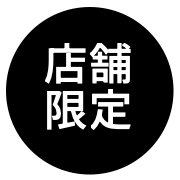
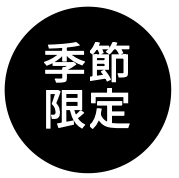

店舗限定、季節限定、Web限定を選択するとイメージ画像の左上に、それぞれのアイコンが表示されます。今回は、店舗限定を選択します。尚、デフォルトの限定なしにチェックを入れておくと、限定マークは表示されません。
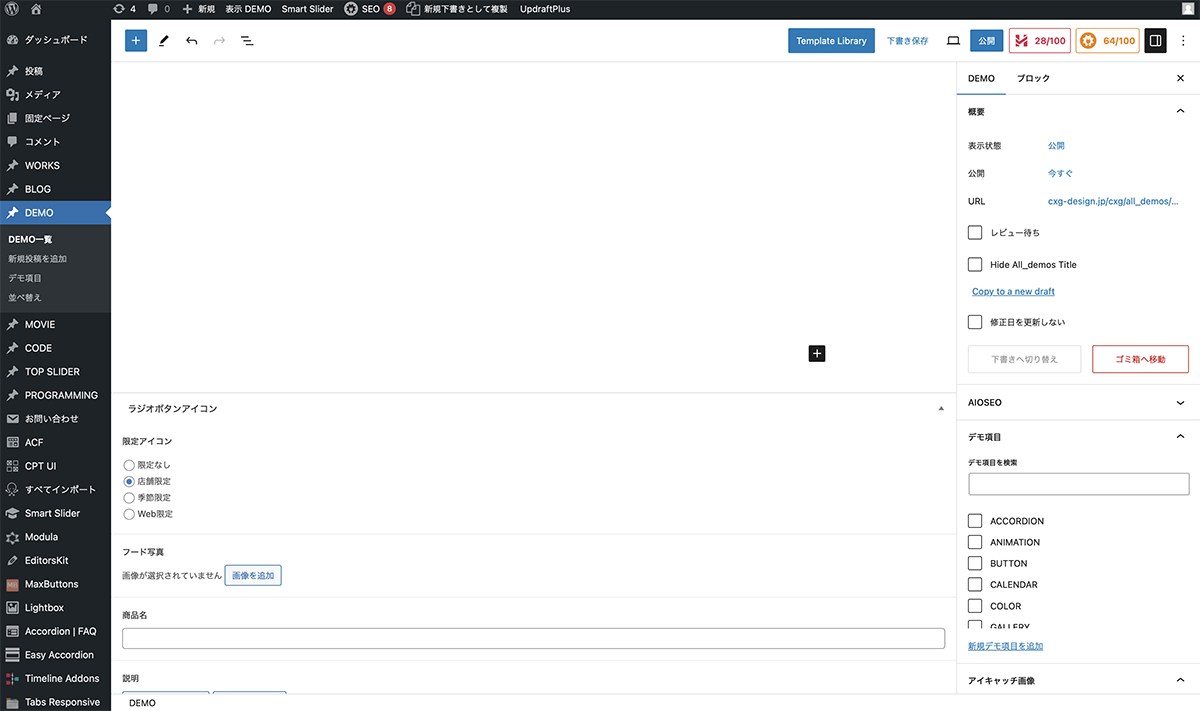
店舗限定を選択
フード写真、商品名、説明を設定します。これで完成です。
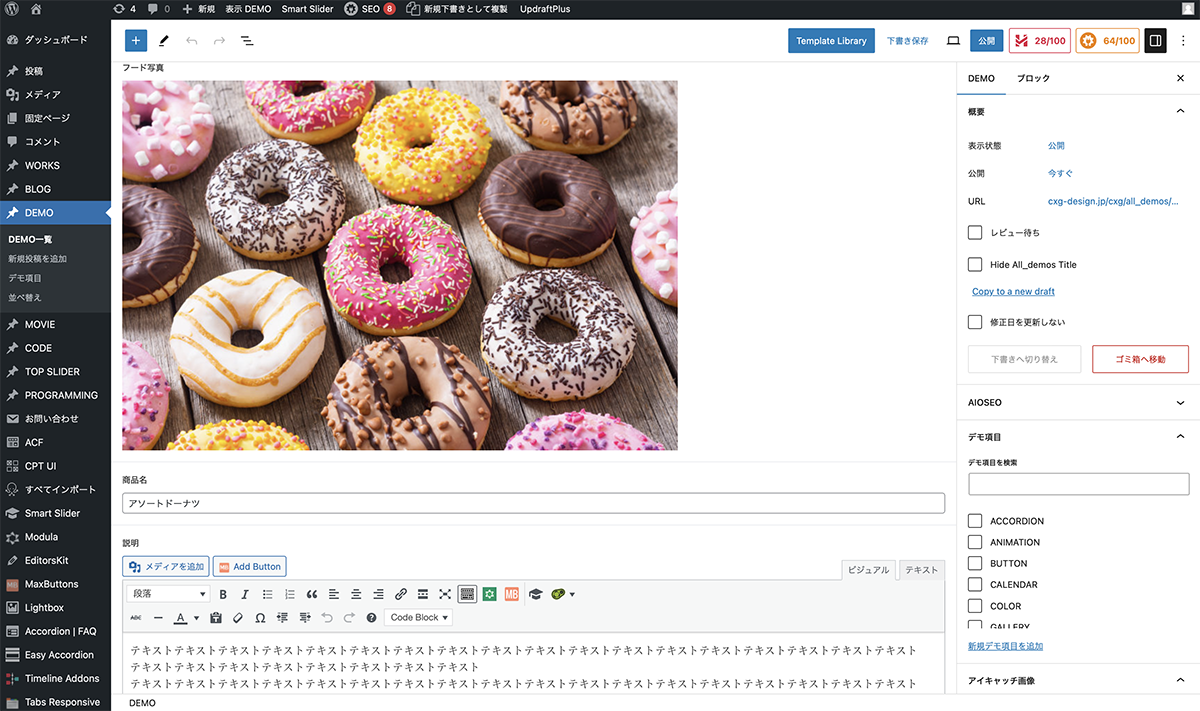
フード写真、商品名、説明を設定
以上で今回の説明は終了です。チェックボックスは、0〜複数の選択肢を選べるのに対し、ラジオボタンは、どれか1つの選択肢を選ばなくてはいけない(1つしか選べない)ことです。複数のアイコンを表示されるのを防ぐためにはラジオボタンが有効です。