
ACFの画像で、溢れた画像をリードモアボタンで、表示非表示を切り替える
Webサイトで、文字や画像が多くなると、アコーディオンなどで情報を表示非表示できるようにすることがよくあります。今回は、ACFの画像で、溢れた画像をリードモアボタンで、表示非表示を切り替える方法を紹介します。


今回のDEMOは、ピクトグラムギャラリーです。
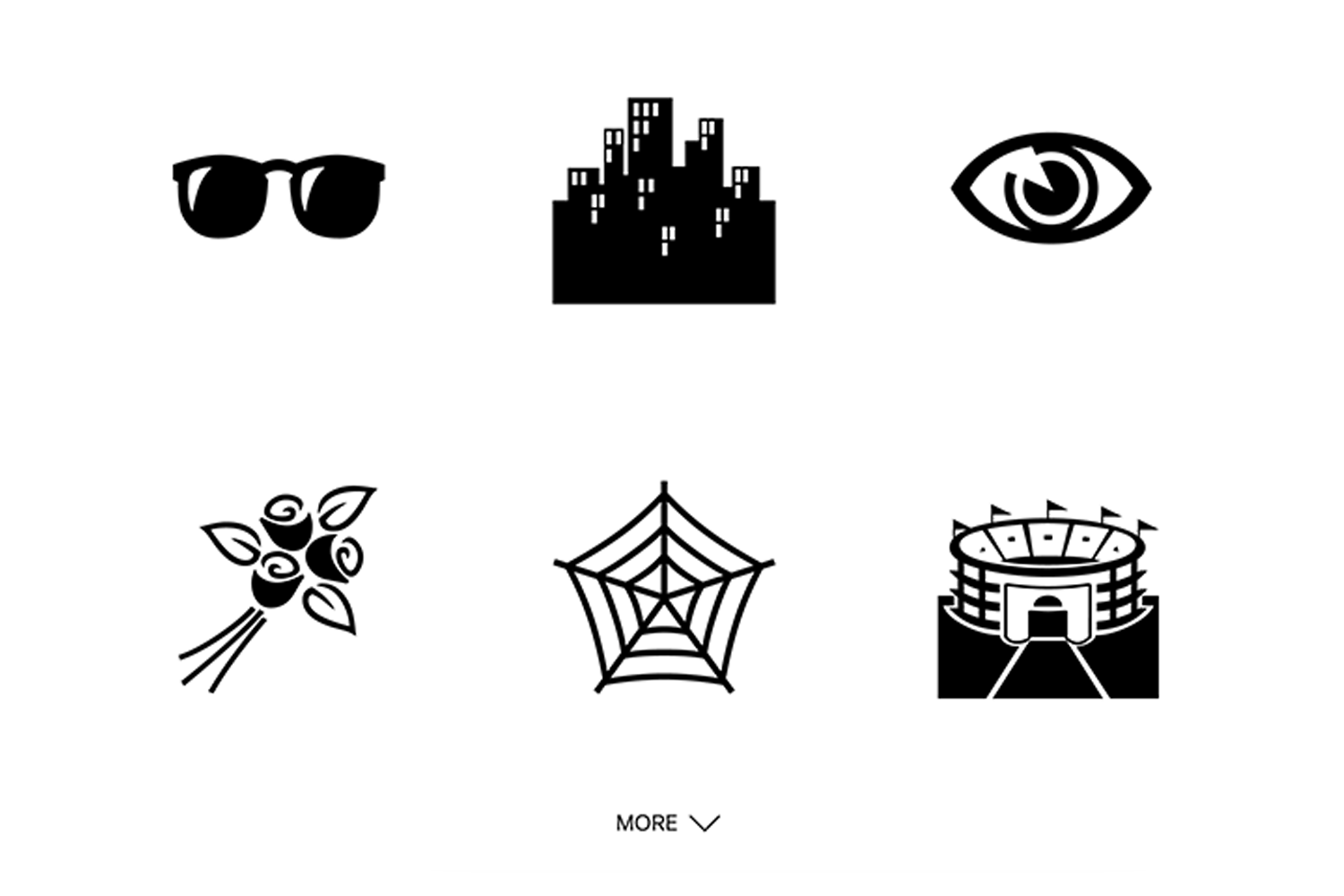
12枚の画像をギャラリーにしました。7枚目の画像が挿入されるとMOREボタンが設置され、クリックすると下にアニメーションで表示されます。
ACF設定
フィールドタイプは、画像です。フィールドラベルに編集画面に表示する名前、フィールド名にPHPに記入する名前を設定します。戻り値の形式は、画像配列です。ライブラリはすべてです。
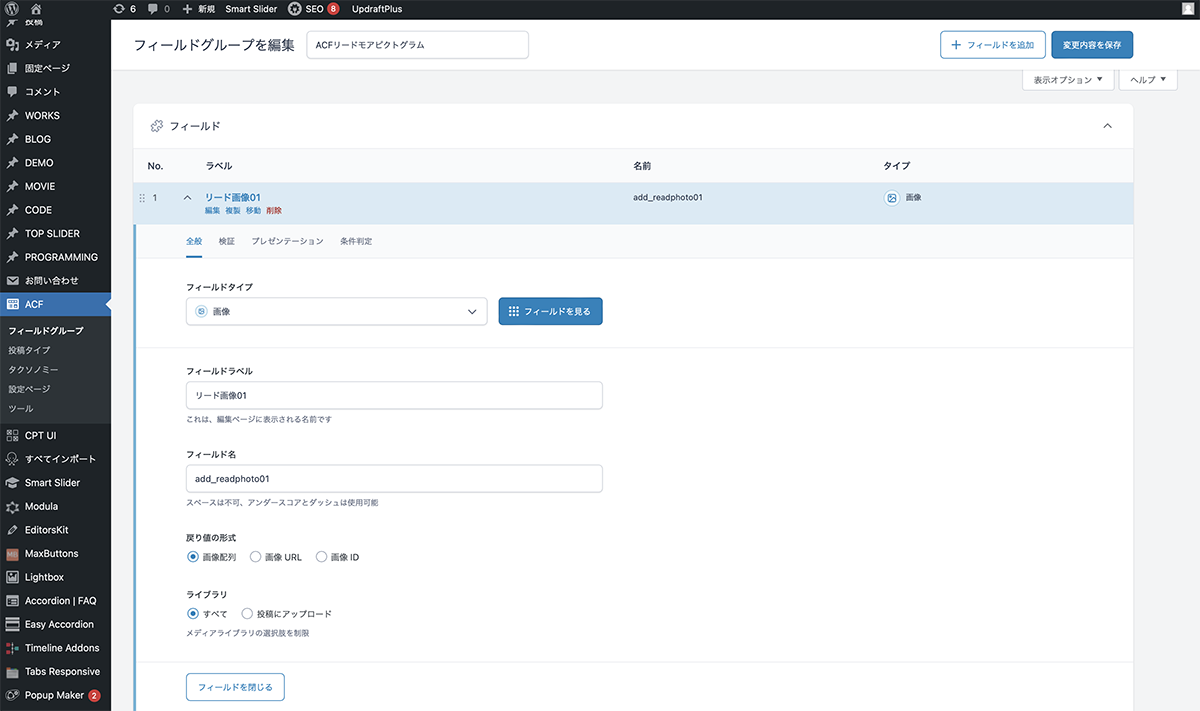
フィールドタイプは、画像
同じように12個の画像フィールドを作成します。これで、ACF設定は完了です。
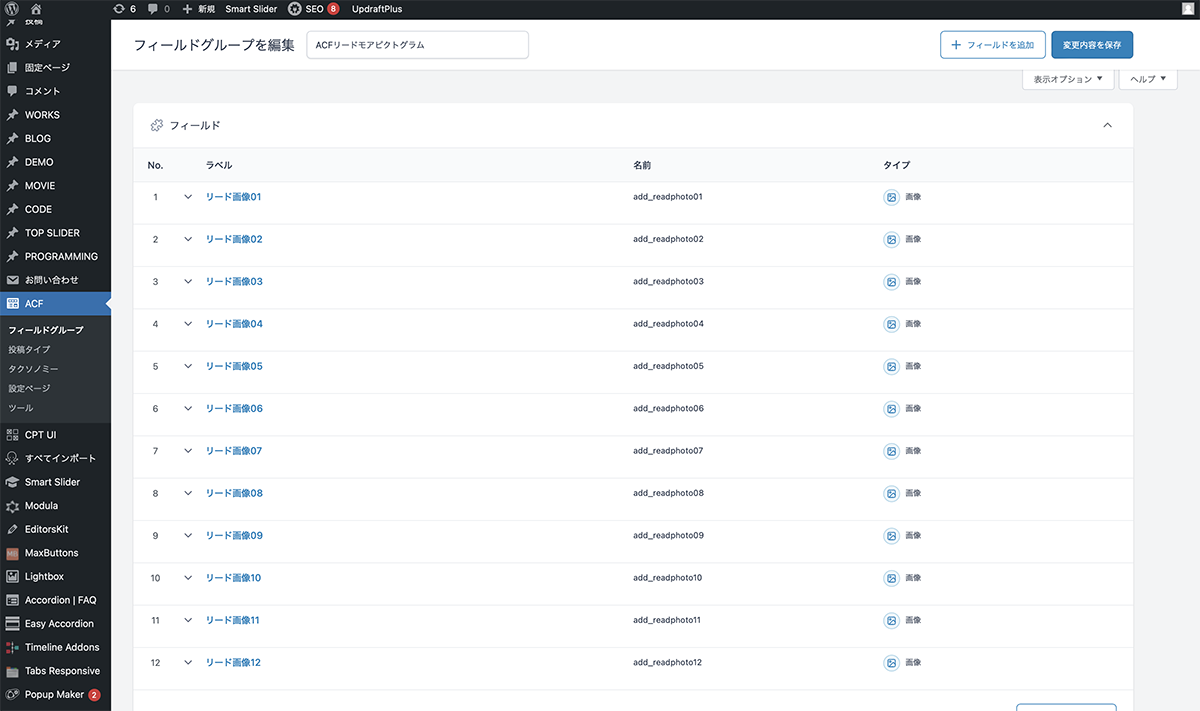
12個の画像フィールドを作成
コード
シングルページループ内に下記コードを入力します。
<div id="readmorewrap">
	<div class="pict-show">
		<ul class="readmore_grid">
			<?php
			$image = get_field('add_readphoto01');
			if( $image ):
    			$url = $image['url'];
    			$title = $image['title'];
    			$alt = $image['alt'];
    			$size = 'large';
    			$thumb = $image['sizes'][ $size ];
			?>
				<li>
        			<img src="<?php echo esc_url($thumb); ?>" alt="<?php echo esc_attr($alt); ?>" />
    			</li>
			<?php endif; ?>
			<?php
			$image = get_field('add_readphoto02');
			if( $image ):
    			$url = $image['url'];
    			$title = $image['title'];
    			$alt = $image['alt'];
    			$size = 'large';
    			$thumb = $image['sizes'][ $size ];
			?>
				<li>
        			<img src="<?php echo esc_url($thumb); ?>" alt="<?php echo esc_attr($alt); ?>" />
    			</li>
			<?php endif; ?>
			<?php
			$image = get_field('add_readphoto03');
			if( $image ):
    			$url = $image['url'];
    			$title = $image['title'];
    			$alt = $image['alt'];
    			$size = 'large';
    			$thumb = $image['sizes'][ $size ];
			?>
				<li>
        			<img src="<?php echo esc_url($thumb); ?>" alt="<?php echo esc_attr($alt); ?>" />
    			</li>
			<?php endif; ?>
			<?php
			$image = get_field('add_readphoto04');
			if( $image ):
    			$url = $image['url'];
    			$title = $image['title'];
    			$alt = $image['alt'];
    			$size = 'large';
    			$thumb = $image['sizes'][ $size ];
			?>
				<li>
        			<img src="<?php echo esc_url($thumb); ?>" alt="<?php echo esc_attr($alt); ?>" />
    			</li>
			<?php endif; ?>
			<?php
			$image = get_field('add_readphoto05');
			if( $image ):
    			$url = $image['url'];
    			$title = $image['title'];
    			$alt = $image['alt'];
    			$size = 'large';
    			$thumb = $image['sizes'][ $size ];
			?>
				<li>
        			<img src="<?php echo esc_url($thumb); ?>" alt="<?php echo esc_attr($alt); ?>" />
    			</li>
			<?php endif; ?>
			<?php
			$image = get_field('add_readphoto06');
			if( $image ):
    			$url = $image['url'];
    			$title = $image['title'];
    			$alt = $image['alt'];
    			$size = 'large';
    			$thumb = $image['sizes'][ $size ];
			?>
				<li>
        			<img src="<?php echo esc_url($thumb); ?>" alt="<?php echo esc_attr($alt); ?>" />
    			</li>
			<?php endif; ?>
		</ul>
	</div>
	<?php if (get_field('add_readphoto07')): ?>
 		<button class="more"></button>
		<div class="pict-hide">
			<ul class="readmore_grid">
				<?php
				$image = get_field('add_readphoto07');
				if( $image ):
    				$url = $image['url'];
    				$title = $image['title'];
    				$alt = $image['alt'];
    				$size = 'large';
    				$thumb = $image['sizes'][ $size ];
				?>
					<li>
        				<img src="<?php echo esc_url($thumb); ?>" alt="<?php echo esc_attr($alt); ?>" />
    				</li>
				<?php endif; ?>
				<?php
				$image = get_field('add_readphoto08');
				if( $image ):
    				$url = $image['url'];
    				$title = $image['title'];
    				$alt = $image['alt'];
    				$size = 'large';
    				$thumb = $image['sizes'][ $size ];
				?>
					<li>
        				<img src="<?php echo esc_url($thumb); ?>" alt="<?php echo esc_attr($alt); ?>" />
    				</li>
				<?php endif; ?>
				<?php
				$image = get_field('add_readphoto09');
				if( $image ):
    				$url = $image['url'];
    				$title = $image['title'];
    				$alt = $image['alt'];
    				$size = 'large';
    				$thumb = $image['sizes'][ $size ];
				?>
					<li>
        				<img src="<?php echo esc_url($thumb); ?>" alt="<?php echo esc_attr($alt); ?>" />
    				</li>
				<?php endif; ?>
				<?php
				$image = get_field('add_readphoto10');
				if( $image ):
    				$url = $image['url'];
    				$title = $image['title'];
    				$alt = $image['alt'];
    				$size = 'large';
    				$thumb = $image['sizes'][ $size ];
				?>
					<li>
        				<img src="<?php echo esc_url($thumb); ?>" alt="<?php echo esc_attr($alt); ?>" />
    				</li>
				<?php endif; ?>
				<?php
				$image = get_field('add_readphoto11');
				if( $image ):
    				$url = $image['url'];
    				$title = $image['title'];
    				$alt = $image['alt'];
    				$size = 'large';
    				$thumb = $image['sizes'][ $size ];
				?>
					<li>
        				<img src="<?php echo esc_url($thumb); ?>" alt="<?php echo esc_attr($alt); ?>" />
    				</li>
				<?php endif; ?>
				<?php
				$image = get_field('add_readphoto12');
				if( $image ):
    				$url = $image['url'];
    				$title = $image['title'];
    				$alt = $image['alt'];
    				$size = 'large';
    				$thumb = $image['sizes'][ $size ];
				?>
					<li>
        				<img src="<?php echo esc_url($thumb); ?>" alt="<?php echo esc_attr($alt); ?>" />
    				</li>
				<?php endif; ?>
			</ul>
		</div>
	<?php endif; ?>
</div>JavaScriptファイルを作成し、下記コードを記入し、読み込みます。
$(function(){
  $(".more").on("click", function() {
    $(this).toggleClass("on-click");
    $(".pict-hide").slideToggle(500);
  });
}); CSSでスタイルを整えます。
.pict-hide {
	display: none;
}

button.more {
	letter-spacing: inherit;
	margin: 1em auto;
	display: block;
	background-color: rgba(0 0 0 0);
	color: #272727;
	padding:10px 15px;
	font-weight: 400;
	border: none;
	outline: 0;
	font-style: normal;
	font-size: 1.5em;
	transition: .5s;
	-erbkit-transition: .5s;
	position: relative;
	text-align: left;
}


button.more:before {
	content: 'MORE';
	padding-right: 1.5em;
}

button.more::after {
	content: '';
	transition: .2s;
	-erbkit-transition: .2s;
	display: inline-block;
	vertical-align: middle;
	color: #272727;
	line-height: 1;
	width: 1em;
	height: 1em;
	border: 0.1em solid currentColor;
	border-left: 0;
	border-bottom: 0;
	box-sizing: border-box;
	transform: translateY(-25%) rotate(135deg);
	margin-top: -0.35em;
	position: absolute;
	right: 10px;
	top: 40%;
}

button.more.on-click:before {
	content: 'CLOSE';
}

button.more.on-click::after {
	display: inline-block;
	vertical-align: middle;
	color: #272727;
	line-height: 1;
	width: 1em;
	height: 1em;
	border: 0.1em solid currentColor;
	border-left: 0;
	border-bottom: 0;
	box-sizing: border-box;
	transform: translateY(25%) rotate(-45deg);
}

.readmore_grid {
	display: grid;
	grid-template-columns: repeat(2, 1fr);
    gap: 2em;
	width: 80%;
	margin: auto;
}

.readmore_grid li img {
	width: 100%;
	height: auto;
}

#readmorewrap {
	padding: 5em 0;
}

@media screen and (min-width: 1250px) {

	.readmore_grid {
		grid-template-columns: repeat(3, 1fr);
	}

}
設置
編集画面に、ACFリードモアピクトグラムのフィールドが作成されます。画像を追加をクリックし、メディアライブラリから画像を選択します。フィールドに画像が設置されます。
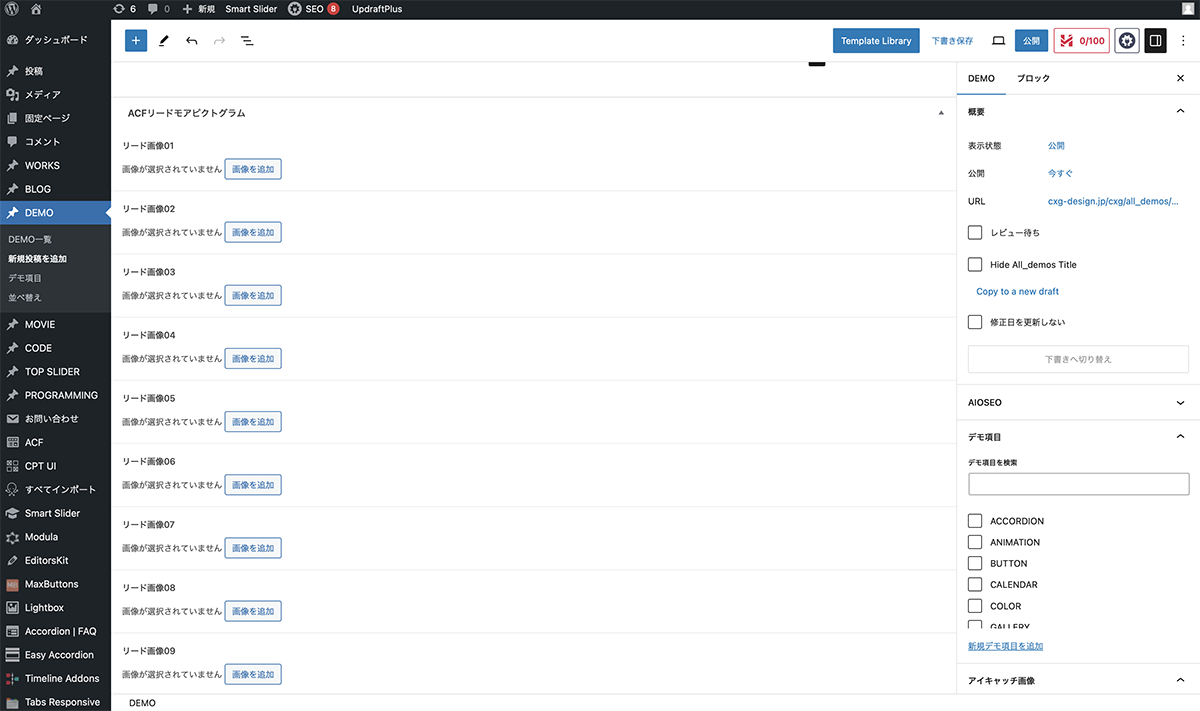
画像を追加をクリック
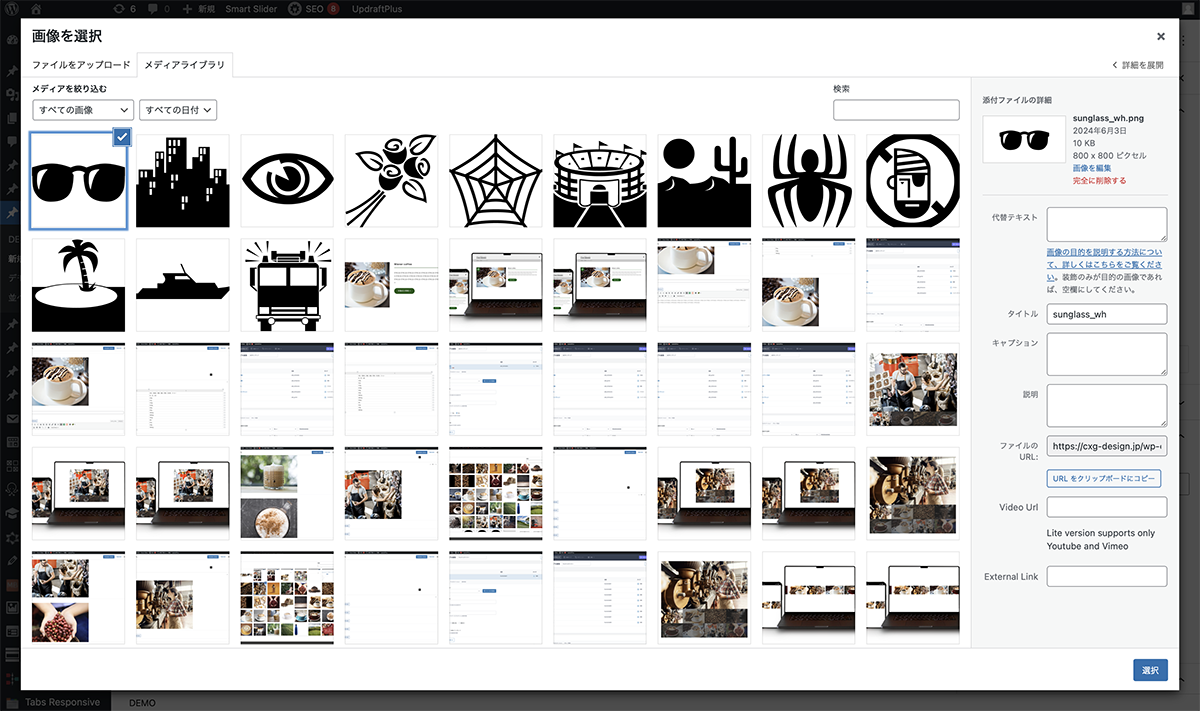
メディアライブラリから画像を選択
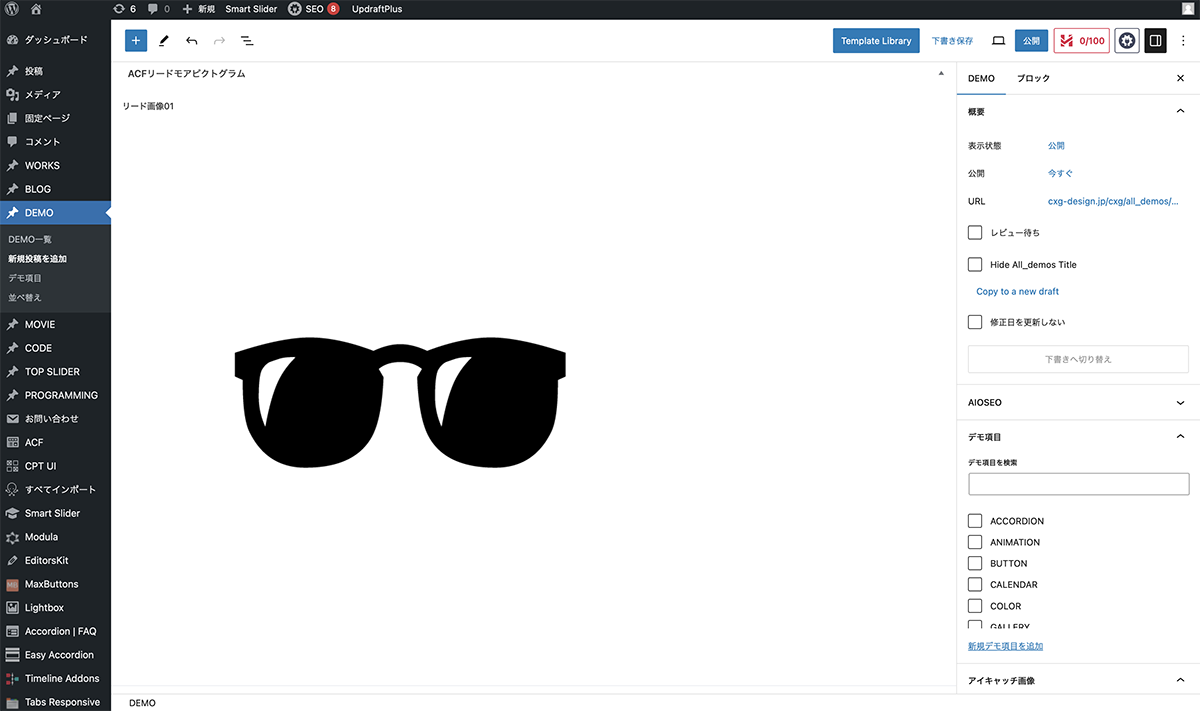
フィールドに画像が設置
同じように12個のフィールドに画像を設定します。これで設置完了です。
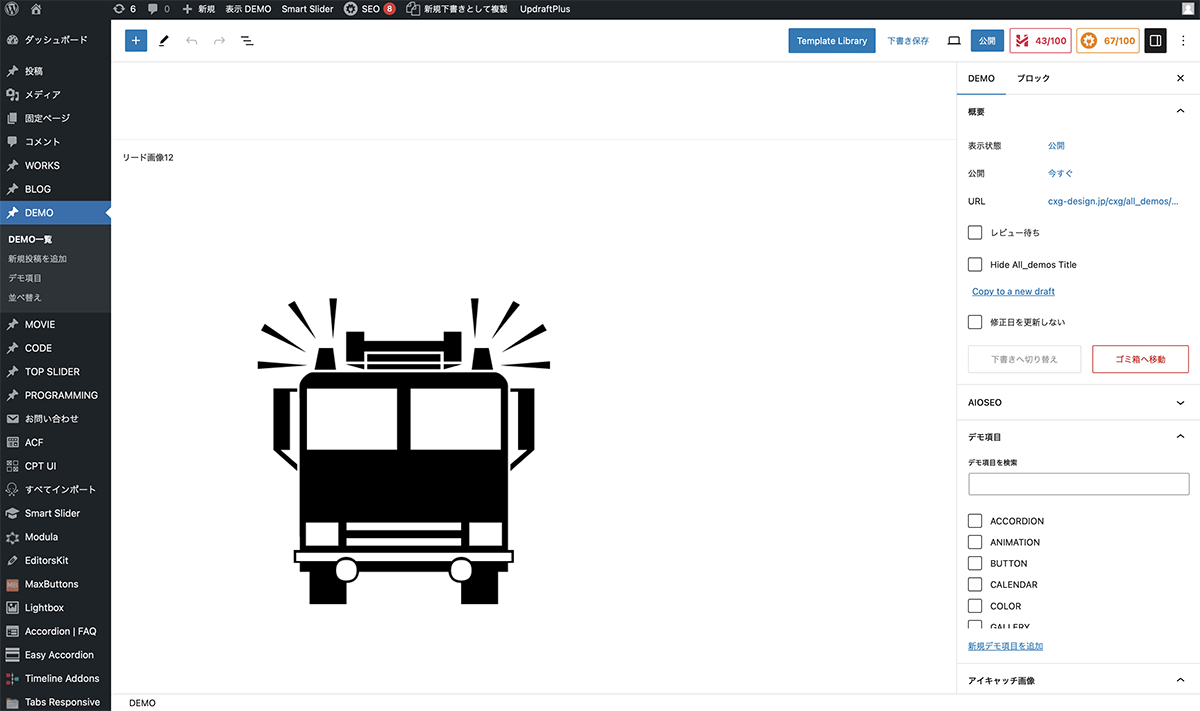
12個のフィールドに画像を設定
以上で今回の説明は終了です。Webサイトでは多くの画像を載せることが出来ます。ただ、デザイン的に煩雑になる場合、今回のように表示非表示できるとスッキリ見えます。今回の設定なら、画像を挿入するだけで、実装できるので、更新も簡単です。