ACFのテーブルで、ボタンクリックで詳細情報をポップアップ表示
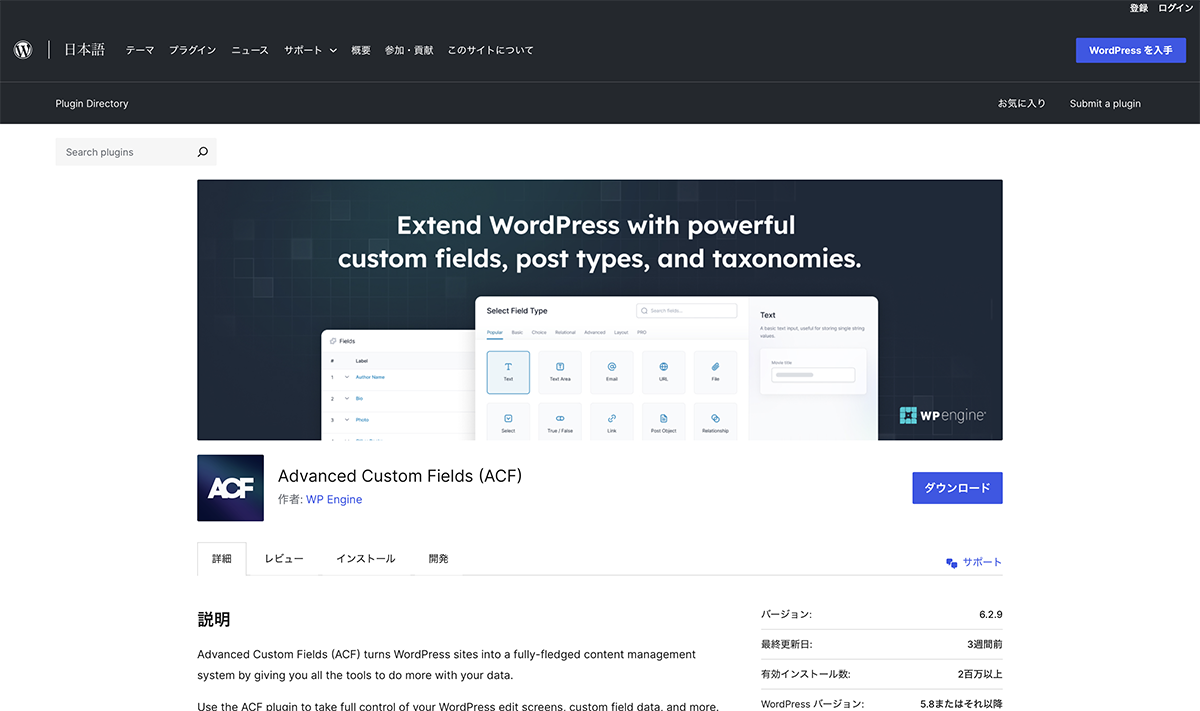
以前のBLOGで、ポップアップ表示するプラグインPopup Makerについて紹介しました。今回は、ACFのテーブルを作成したら、ポップアップ表示される方法を紹介します。

ACF設定
フィールドタイプは、Tableに設定します。フィールドラベルに、編集画面に表示する名前、フィールド名にPHPに記入する名前を設定します。Table Headerは、Noに設定します。Table Captionも、Noに設定します。
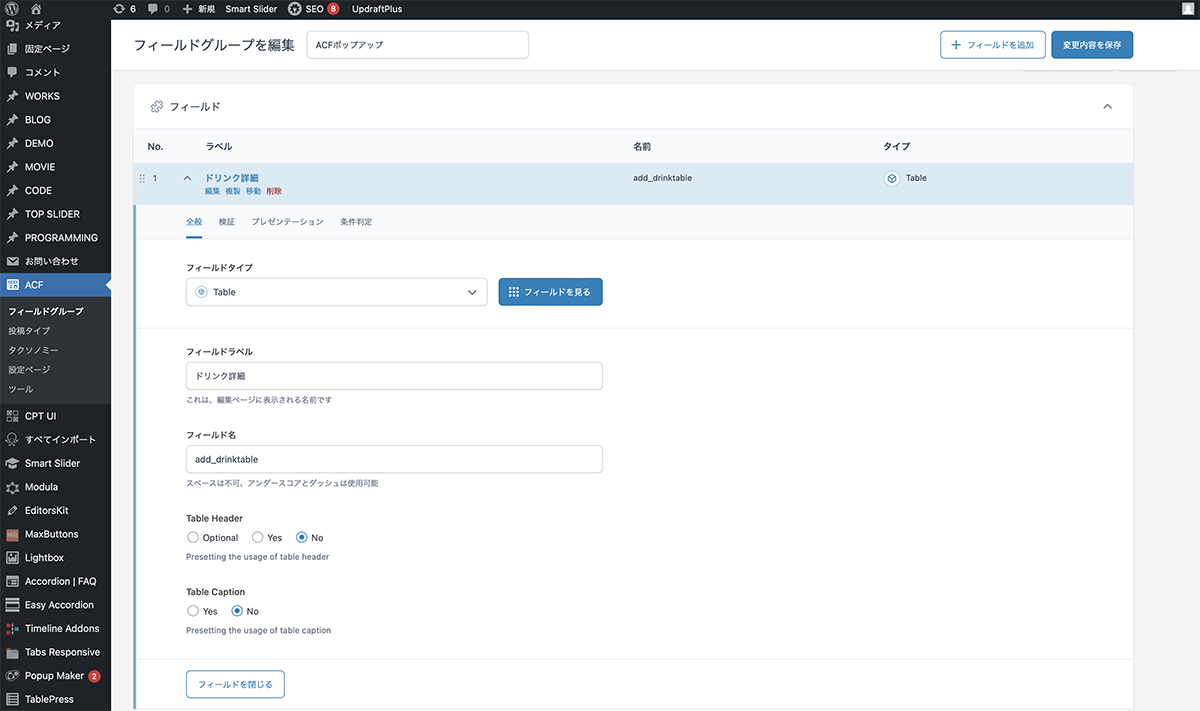
フィールドタイプは、Tableに設定。
| 項目 | 設定値 |
|---|---|
| フィールドタイプ | Table |
| フィールドラベル | テーブル |
| フィールド名 | table_test |
| Table Header | No |
| Table Caption | No |
その他のフィールドを設定します。限定のフィールドタイプはラジオボタンに設定します。ドリンク画像のフィールドタイプは、画像に設定します。ドリンク名のフィールドタイプは、テキストに設定します。ドリンクキャプションのフィールドタイプは、リッチエディター(WYSIWYG)に設定します。
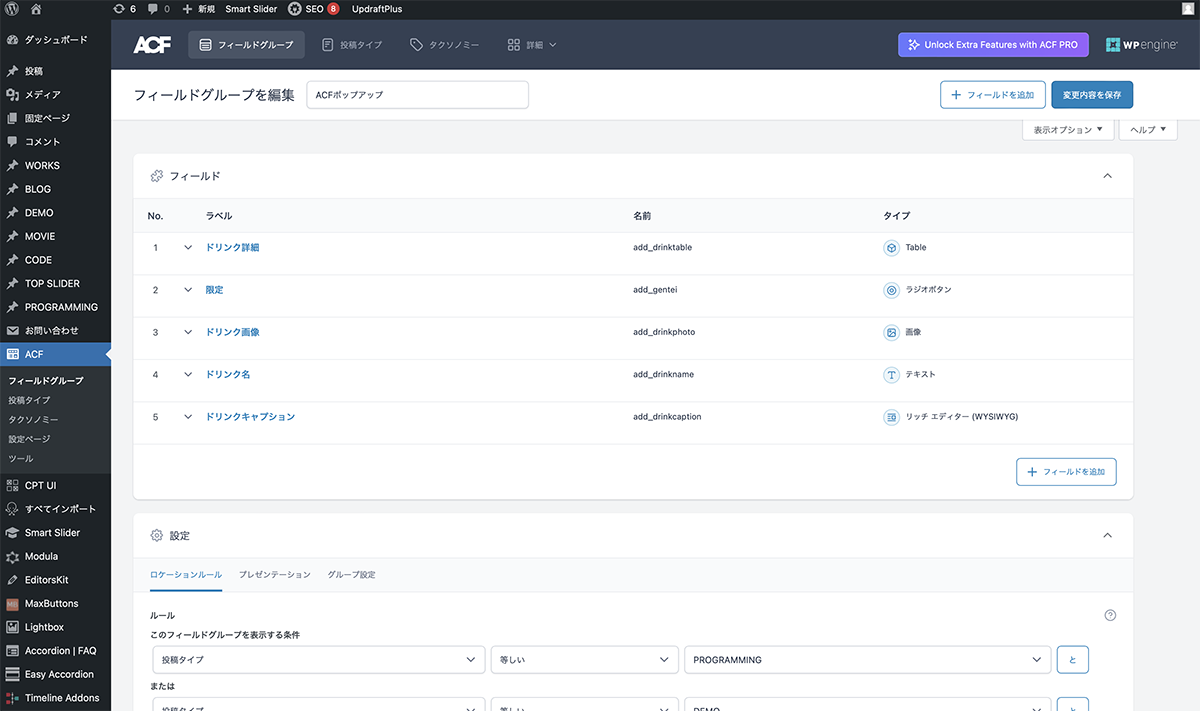
その他のフィールドを設定
コード
シングルページループ内に下記コードを入力します。
<div class="drink_box">
	<div class="drink_wrapper">
		<?php
			$image = get_field('add_drinkphoto');
			if( $image ):
    			$url = $image['url'];
    			$title = $image['title'];
    			$alt = $image['alt'];
    			$size = 'large';
    			$thumb = $image['sizes'][ $size ];
		?>
		<figure class="drink-image">
        	<img src="<?php echo esc_url($thumb); ?>" alt="<?php echo esc_attr($alt); ?>" />
    	</figure>
		<?php endif; ?>
		<?php
  			if( get_field('add_gentei') == 'genteistor' ){
    			echo '<div class="genteiicon"><div class="iconinner">店舗</br>限定</div></div>';
  			}elseif( get_field('add_gentei') == 'genteiseason' ){
    			echo '<div class="genteiicon"><div class="iconinner">季節</br>限定</div></div>';
  			}elseif( get_field('add_gentei') == 'genteiweb' ){
    			echo '<div class="genteiicon"><div class="iconinner">Web</br>限定</div></div>';
  			}
		?>
	</div>
	<div class="drink_textbox">
		<div class="food_heading">
			<?php the_field('add_drinkname'); ?>
		</div>
		<p><?php the_field('add_drinkcaption'); ?></p>
		<!--モーダル-->
		<?php if (get_field('add_drinktable')): ?>
			<button id="open">栄養成分情報  +</button>
    		<section id="modal">
				<div class="food_heading">
					<?php the_field('add_drinkname'); ?>
				</div>
       			<?php
					$table = get_field( 'add_drinktable' );
					if ( ! empty ( $table ) ) {
						echo '<div class="texttable_wrapper"><table border="0">';
 						if ( ! empty( $table['caption'] ) ) {
							echo '<caption>' . $table['caption'] . '</caption>';
 						}
						if ( ! empty( $table['header'] ) ) {
 							echo '<thead>';
							echo '<tr>';
 							foreach ( $table['header'] as $th ) {
 								echo '<th>';
        						echo $th['c'];
        						echo '</th>';
      						}
      						echo '</tr>';
    						echo '</thead>';
  						}
  						echo '<tbody>';
    					foreach ( $table['body'] as $tr ) {
    	    				echo '<tr>';
      						foreach ( $tr as $td ) {
      							echo '<td>';
        						echo $td['c'];
        						echo '</td>';
      						}
      						echo '</tr>';
    					}
    					echo '</tbody>';
  						echo '</table></div>';
					}
				?>
        		<div id="close">×</div>
				</section>
			<div id="mask"></div>
		<?php endif; ?>
	</div>
</div>
JavaScriptファイルを作成し、下記コードを入力し、読み込みます。
const open = document.querySelector('#open');
const close = document.querySelector('#close');
const modal = document.querySelector('#modal');
const mask = document.querySelector('#mask');
const showKeyframes = {
  opacity: [0, 1],
  visibility: 'visible',
};
const hideKeyframes = {
  opacity: [1, 0],
  visibility: 'hidden',
};
const options = {
  duration: 800,
  easing: 'ease',
  fill: 'forwards',
};

open.addEventListener('click', () => {
  modal.animate(showKeyframes, options);
  mask.animate(showKeyframes, options);
});

close.addEventListener('click', () => {
  modal.animate(hideKeyframes, options);
  mask.animate(hideKeyframes, options);
});

mask.addEventListener('click', () => {
  close.click();
});
CSSでスタイルを整えます。
#open {
	margin-top: 1em;
}

#open,
#close {
    background: #005908;
    font-style: normal;
    border-radius: 4em;
    padding: 0.7em 2em;
    cursor: pointer;
}

#close {
	position: absolute;
	top: 0;
	right: 0;
    padding: 0.1em 0.2em 0 0;
    cursor: pointer;
	background: #fff;
	font-size: 4em;
	line-height: 0.8;
	color: #005908;
}

#mask {
    background: rgba(0, 0, 0, .6);
    position: fixed;
    inset: 0;
    z-index: 9998;
    opacity: 0;
    visibility: hidden;
}

#modal {
    background: #fff;
    padding: 3em;
    border-radius: .5rem;
    inset: 10rem 0 auto;
    margin: auto;
    z-index: 9999;
    opacity: 0;
    visibility: hidden;
	width: 90vw;
	overflow-y: auto;
}

.drink_box {
	margin: auto;
}

.drink_box .food_heading{
	padding-bottom: 0.5em;
	margin-bottom: 1.5em;
	border-bottom: solid 2px #005908;
	font-size: 1.3em;
	font-weight: 500;
	letter-spacing: 0.1em;
}

.drink_wrapper {
	position: relative;
	flex: 1;
}

.drink-image {
	width: 100%;
	padding-bottom: 2em;
}

.drink-image img {
	width: 100%;
	height: auto;
}

.texttable_wrapper table,tr,td {
    border-collapse:  collapse;
    border-spacing: 0;
	padding: 0;
	margin: 0;
}

#modal .texttable_wrapper {
	margin: auto;
	text-align: left;
}


#modal .texttable_wrapper table {
	width: 100%;
}

#modal	.texttable_wrapper th,td {
	vertical-align: baseline;
}

#modal	.texttable_wrapper td {
	border-bottom: 0;
	vertical-align: top;
	padding: 0.5em 0;
}

#modal	.texttable_wrapper tbody tr :first-child {
	font-weight: 400;
	padding-right: 0.7em;
	width: 30%;
}

#modal .food_heading {
	padding-bottom: 0.5em;
	margin-bottom: 1.5em;
	border-bottom: solid 2px #005908;
	font-size: 1.3em;
	font-weight: 500;
	letter-spacing: 0.1em;
}

.genteiicon {
	text-align: center;
	color: #fff;
	background: #005908;
	width: 4em;
	height: 4em;
	border-radius: 4em;
	display: table;
	margin: auto;
	font-weight: 500;
	font-size: 1.2em;
	line-height: 1.1;
	position: absolute;
	top: 0;
}

.drink_textbox {
	flex: 1;
	padding-bottom: 2em;
	width: 80%;
	margin:0 auto;
}

@media screen and (min-width: 1250px) {

	#modal {
		width: 50vw;
		max-width: 1000px;
		padding: 3em 10%;
	}

	.drink_box {
		width: 80%;
		max-width: 1500px;
		padding-top: 7em;
	}

	.drink_box {
		display: flex;
		flex-wrap: wrap;
		align-items: flex-start;
    	gap: 2.5em;
	}

	.drink_textbox {
		width: 100%;
	}

}
設置
編集画面に、ACFポップアップフィールドが作成されます。ドリンク詳細のテーブルフィールドに、テーブルを作成し、情報を入力します。
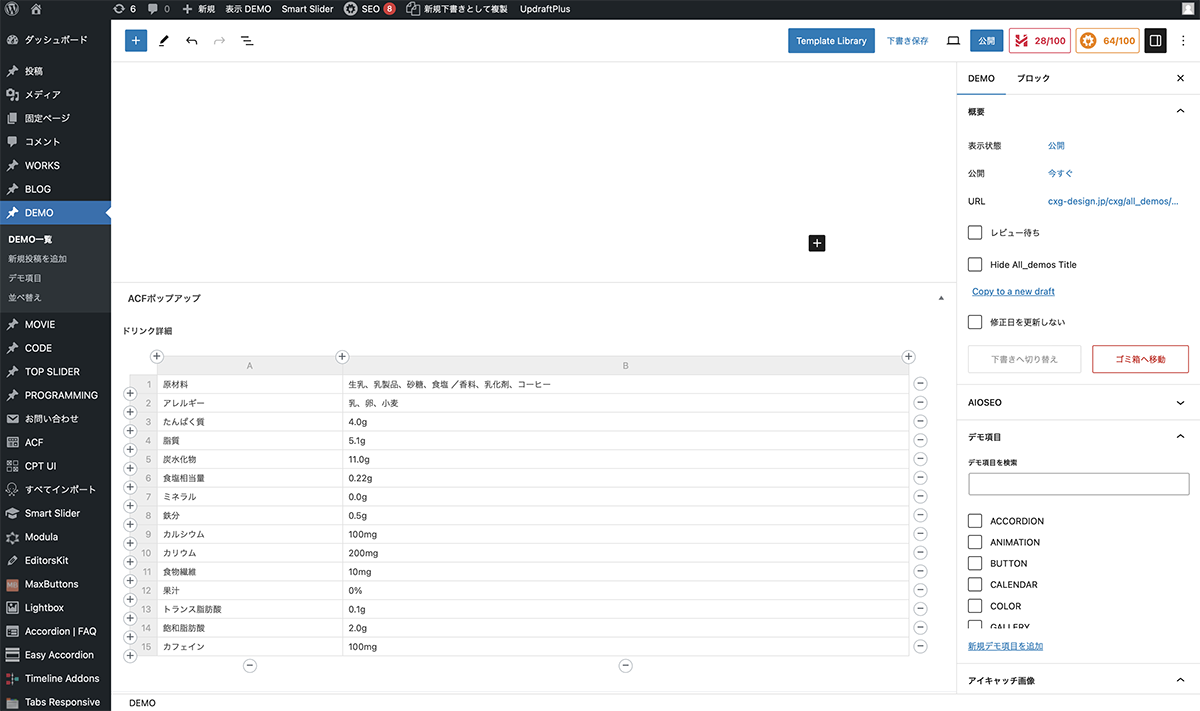
テーブルフィールドに、テーブルを作成し、情報を入力
その他の設定をします。限定のラジオボタンフィールドは、季節限定を選択します。ドリンク画像の画像フィールドに、メディアライブラリからイメージ画像を挿入します。ドリンク名のテキストフィールドに、ドリンク名を入力します。ドリンクキャプションのリッチエディターフィールドにキャプションを入力します。
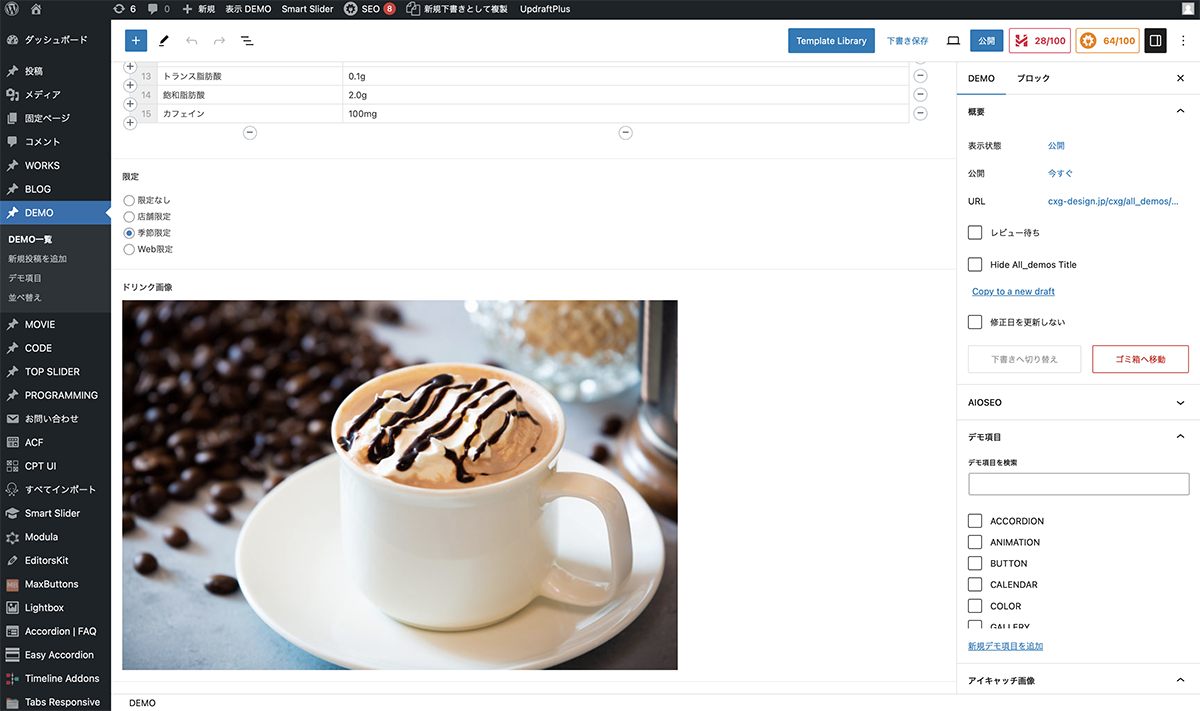
限定のラジオボタンフィールドは、季節限定を選択。ドリンク画像の画像フィールドに、メディアライブラリからイメージ画像を挿入。
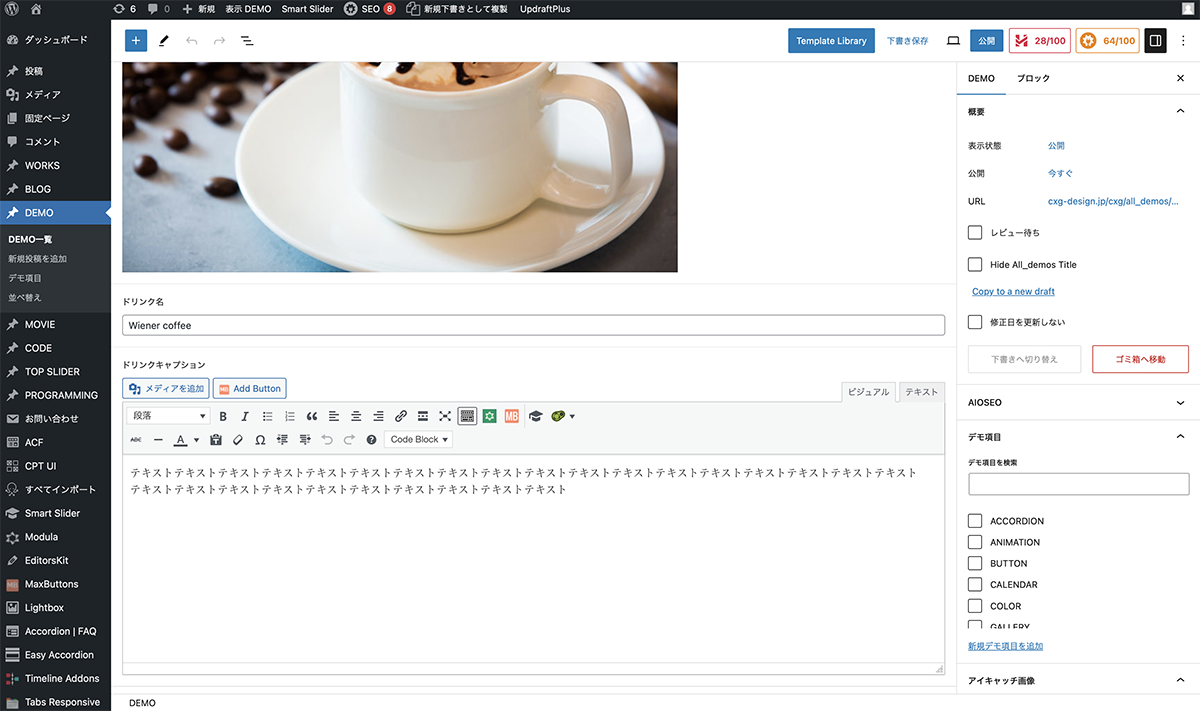
ドリンク名のテキストフィールドに、ドリンク名を入力。ドリンクキャプションのリッチエディターフィールドにキャプションを入力。
以上で今回の説明は終了です。テーブルを作成するだけでポップアップが作成されるので簡単ですね。テンプレートページの場合、プラグインよりACFの方が便利です。